How to edit a screen recording with AI
Use AI to remove dead time, tighten narration, frame interface details and turn a raw screen recording into a clear video.
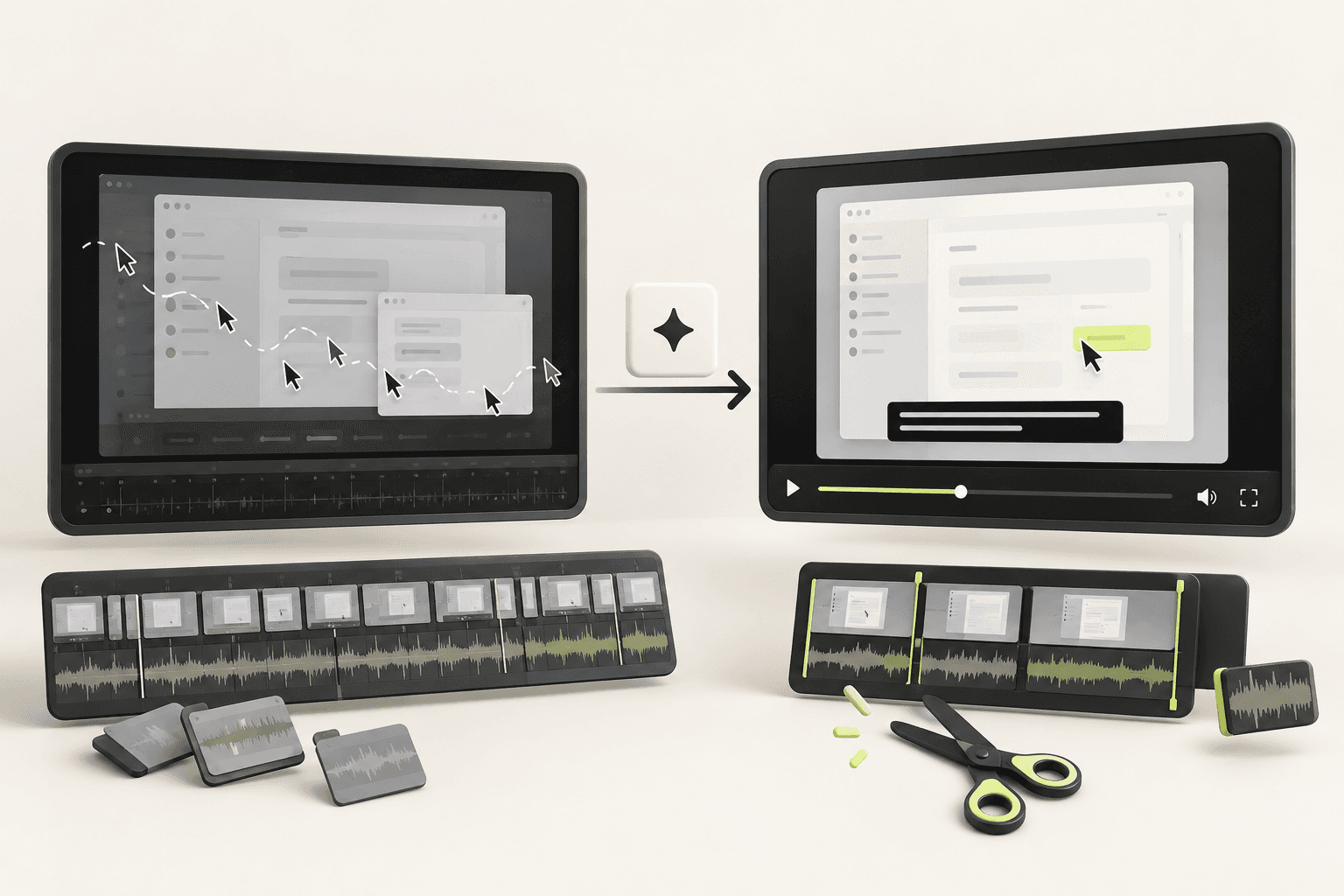
AI is most useful on screen recordings when it removes mechanical work: transcription, silence detection, rough cuts, reframing and caption timing. It cannot reliably decide which product truth matters most or whether a shortened sequence is still accurate. Treat it as a fast first editor, then review the story and interface yourself.
1. Preserve the original and define the output
Duplicate the raw recording before uploading it anywhere. Decide the target viewer, placement, aspect ratio and maximum duration. A support clip should prioritise exact steps. A launch video should prioritise the outcome and pace. The same recording can produce both, but not through the same edit.
2. Generate and correct the transcript
Transcribe first so the recording becomes editable as text. Correct product names, technical terms, numbers and speaker labels before using transcript-based cuts. A wrong noun in the transcript often becomes a wrong caption and can also cause the tool to cut around the wrong phrase.
3. Let AI make the mechanical first pass
- Remove long silences and obvious false starts, but keep pauses after important results.
- Detect repeated takes and select the clearest complete version.
- Suggest chapters or scene boundaries from topic changes.
- Create captions and an initial vertical reframe.
- Flag filler words rather than deleting every one automatically.
4. Restore visual cause and effect
Automated cuts can make an interface appear to change by magic. Watch every join and preserve enough cursor movement, loading state or transition for the viewer to understand what caused the result. Speed up genuine waiting, but do not erase the action that teaches the workflow.
5. Reframe for readability
| Problem | Useful edit | Avoid |
|---|---|---|
| Small interface text | Crop or zoom before the action | A sudden zoom after the click |
| Cursor is hard to follow | Subtle highlight and deliberate movement | Constant cursor spotlight |
| Vertical output | Recompose around one active region | Blind centre crop |
| Sensitive data | Remove or fully mask it | A weak blur that remains readable |
6. Review accuracy, privacy and captions
Watch once muted, once at normal speed and once frame by frame around cuts. Confirm that captions match the spoken words, confidential details are not visible, the edited workflow still reflects the current product and no AI-generated summary invents a capability. Export a captioned delivery file and keep a clean master.
Where AI saves the most time
The largest gains come from finding usable takes, removing dead time, resizing versions and keeping captions in sync. Keep human control over the promise, the order of evidence and the final accuracy check. Those decisions are the video.
Questions people ask
Can AI edit my screen recording automatically?
It can remove dead air, tighten narration and reframe for readability without help. Deciding which thirty seconds of a ten-minute recording matter is still a judgement, which is why a recording still needs an editor's eye.
Will the edit change what I said?
It should not. A polish keeps the presenter's own words; anything that adds a claim the recording never made is a rewrite, not an edit.
Keep reading
How to make a product demo video
The best demo is not a tour. It is proof that one important job becomes easier. Here is how to script and show that proof.
What a product video actually costs in 2026
Five routes, from $0 to $50,000, and what each one actually buys. Plus the three costs that never appear in a quote and usually decide the annual bill.
Best software demo video tools for SaaS in 2026, and how to choose
The value in software is usually invisible. That single fact rules out most of the tool categories.