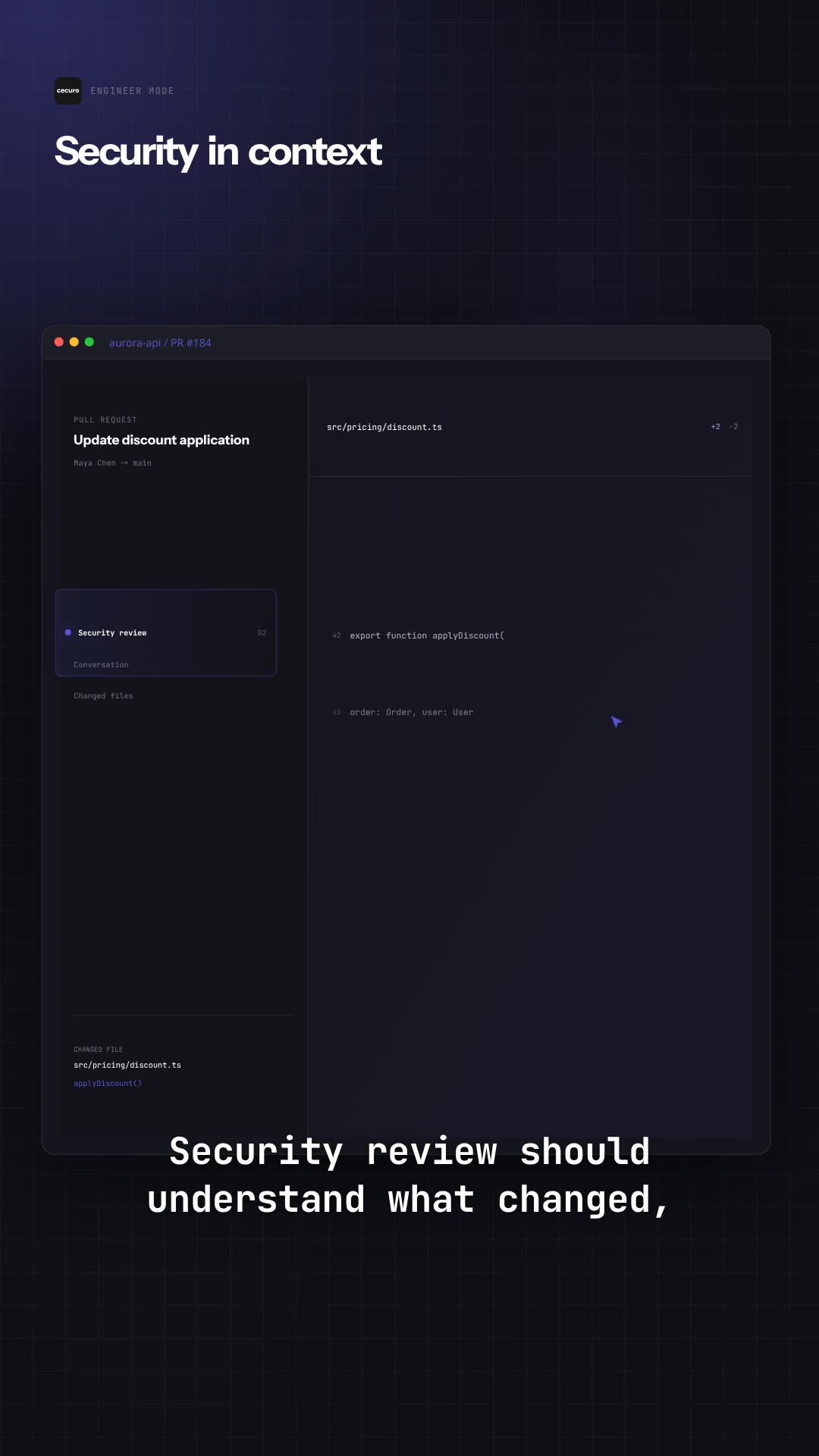
Screenshot to video

Skip the screenshots.
Film the real app.

Screenshots make a film of pictures. Frame24 captures your running app instead — sign in once, or let your coding agent do it from the code — and builds the film from the real interface: the voice, the music and the captions included.

Three 30-second films · Card required · No generated media

Use Frame24 from your AI assistant

Let the agent that already knows your work make the film.

Connect Frame24 to ChatGPT, Claude, Gemini or a coding agent in about two minutes. Your assistant can understand the product, capture the right screens, review the film and keep the whole process in the conversation.

Choose your assistant and connect it
Cursor, VS Code, Windsurf →
claude mcp add --transport http frame24 https://studio.frame24.app/api/mcp

Start Claude Code, type /mcp, choose frame24 and Authenticate. Sign in to Frame24 in the browser tab that opens and click Allow.

In plain terms

What Frame24 is
Frame24 is an AI product video generator that captures a web or mobile app's real, running screens — never screenshots — and builds a narrated, on-brand product film around them, with the story written from your website.
Best for
Founders and small teams with a working app who want a launch, homepage or app-store video that shows the product itself, without recording a demo or opening an editor.
How it differs
Screenshot-to-video tools animate one flat image at a time or wrap it in a device frame. Frame24 works from the live interface, so the product's own cards, figures and buttons become part of the motion — and nothing is ever redrawn.

How it works

From your running app to a finished film.

The real screens are the evidence. The story, the design and the sound are made for you.

01

Add your URL, then sign in to your app

Frame24 reads the website for the positioning, the product's claims, your colours and type. Then you sign in to your product once in its secure browser — your password goes only to your product — and the screens that matter are captured. Or your coding agent captures them from the code.

02

Pick the story

You get distinct ways to tell it, each placing your screens where they prove a line of the narration. Choose the direction before anything is rendered.

03

Say what to change, then export

Click a scene and describe the change — a different screen, a slower move, a shorter line. Export in 16:9, 9:16 and 1:1.

Why not screenshots

Your interface, in motion.

A captured screen is made of your product's real elements, so the film can use them.

The product clicks

A real button is pressed and the real next screen opens from it, so a journey plays like the product being used rather than a slideshow.

Figures and fields that work

A number counts up to its real value and text types into the real field, because the film has the element, not a picture of it.

Parts that move with the story

The card, row or chart the narration is about can come forward from the screen while the rest falls back, instead of a whole screenshot held with text beside it.

Real data swapped out

Customer names and figures are replaced with invented ones before the screen is used, so the film shows your product without exposing anyone.

Never redrawn

No imitation of your app and no repainted buttons. Everything on screen is your product as it runs.

Kept for the next film

Captured screens are saved to your product UI library, so next month's feature launch starts from the screens you already have.

Straight answer

Two ways to capture.

Sign in in Frame24's browser when

  • Your app runs in a browser you can sign in to
  • You want it done without touching any code
  • You're working from ChatGPT, Claude or Gemini

Let your coding agent capture it when

  • The app runs locally or in a staging build
  • It is a mobile or desktop app with components in the repo
  • You already work in Claude Code, Codex or Cursor

Made from real screens

Product screens, in the story.

Films built from each company's own interface and brand.

Questions

Answered plainly.

Can I turn a screenshot of my app into a demo video automatically?

Frame24 does something better than that: instead of screenshots, it captures your running app. Sign in to your product once in Frame24's secure browser and it captures each screen as it runs — or let your coding agent capture the app from your code over MCP. The film then gets your real cards, rows, figures and buttons, so they can lift off the screen, count up and carry into the next screen with the narration, rather than sitting there as a still with a line of text beside it.

Why doesn't Frame24 accept screenshots?

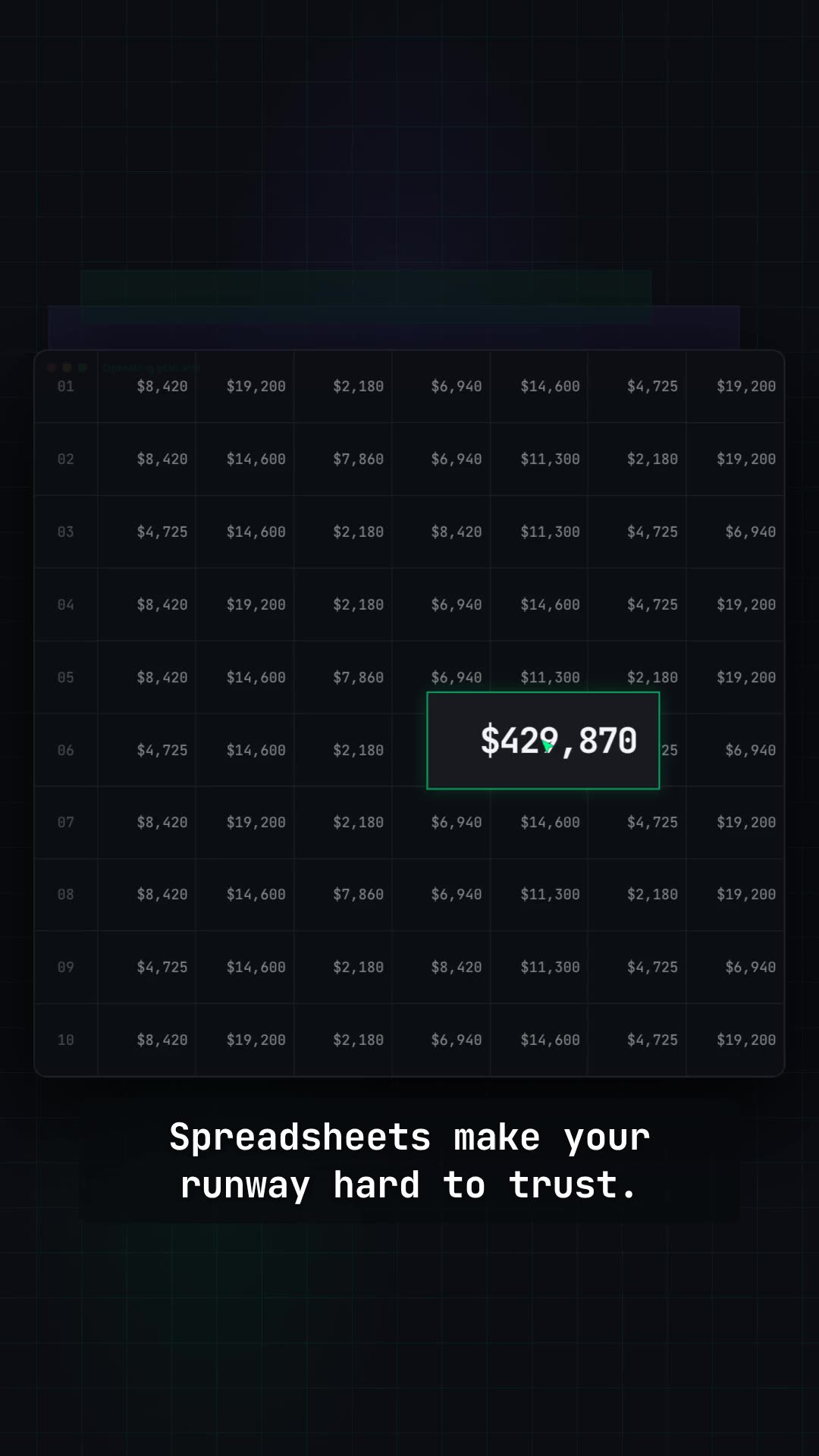
A screenshot is one flat picture. A film can only move it, zoom it and draw on it, so every product moment ends up looking the same: a picture with some text next to it. A captured screen is made of the product's real elements, so the film can use the interface itself as part of the motion — and it is still exactly your product, never redrawn.

What about a mobile or desktop app?

Your coding agent renders your own components from the code in a browser — your Storybook, a web build such as react-native-web or Expo web, or a small page that mounts the real screens with demo data — and captures that. Phone screens stay phone-shaped, and the film exports in vertical 9:16 as well as 16:9 and 1:1.

How long does capturing take?

A few minutes. A 30-second film usually shows three or four screens — the problem, the screen where the product does the work, and the result. You sign in; Frame24 or your coding agent clicks through the journey and captures each screen. Real names and figures are swapped for invented ones before anything is used.

How much does it cost?

Frame24 starts with a 3-day trial (card required) that includes three 30-second films, without downloads. Paid plans start at $39 a month, or download a single finished 30-second film for $20.
Your app
is the footage.

Paste your URL, sign in to your app once and see the first cut. Three 30-second films on a 3-day trial.

Start your trial Three 30-second films · Card required · No generated media