ChatGPT guideConnect Frame24 to ChatGPT
Add Frame24 to ChatGPT as an app in about three minutes — every step pictured — then ask ChatGPT to make a product film of your website and real screens.
Adding Frame24 to ChatGPT takes about three minutes. You switch on one setting, give ChatGPT Frame24's web address, and sign in to Frame24 once. From then on you can ask ChatGPT for product films — it researches your product, captures your real screens and checks the story with you before anything is made.
You need: ChatGPT Plus, Pro, Business, Enterprise or Education, and a computer with a web browser (custom apps do not run in ChatGPT's mobile apps yet). You do not need a Frame24 account — you can create one during step 4.
Connect Frame24 to ChatGPT
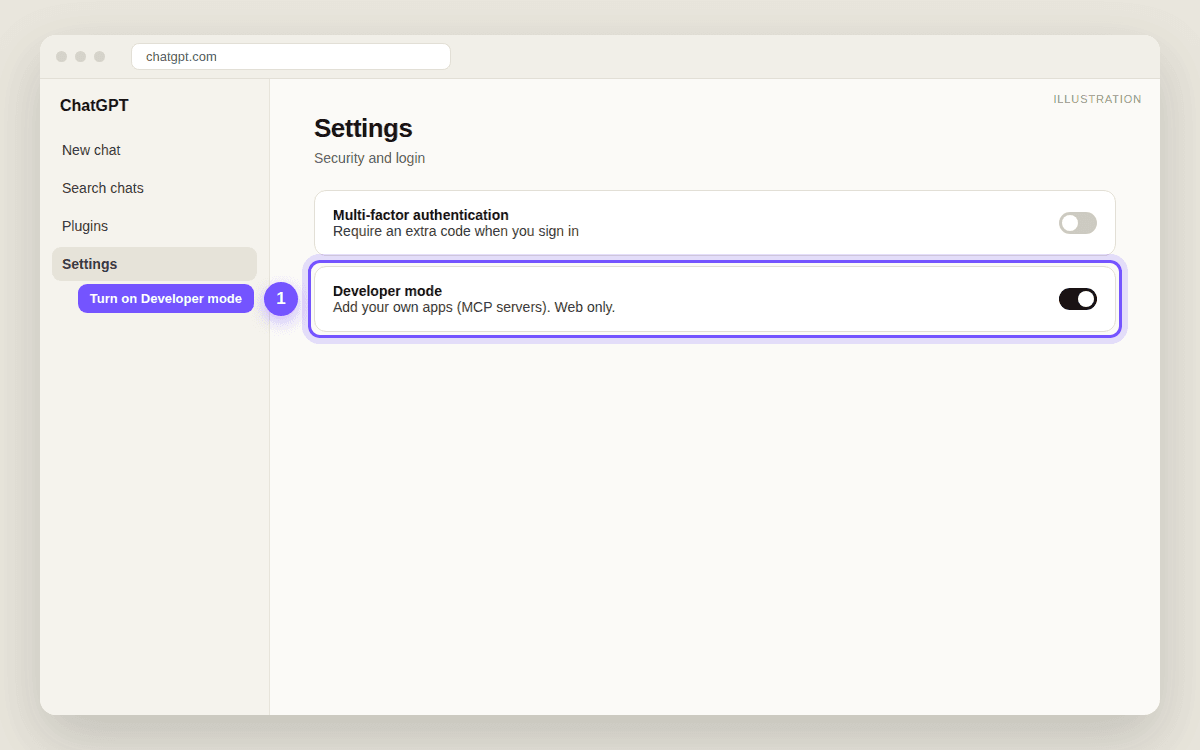
- Turn on Developer modeOn chatgpt.com, open Settings. Under Security and login (on some accounts: Apps → Advanced settings), switch Developer mode on.
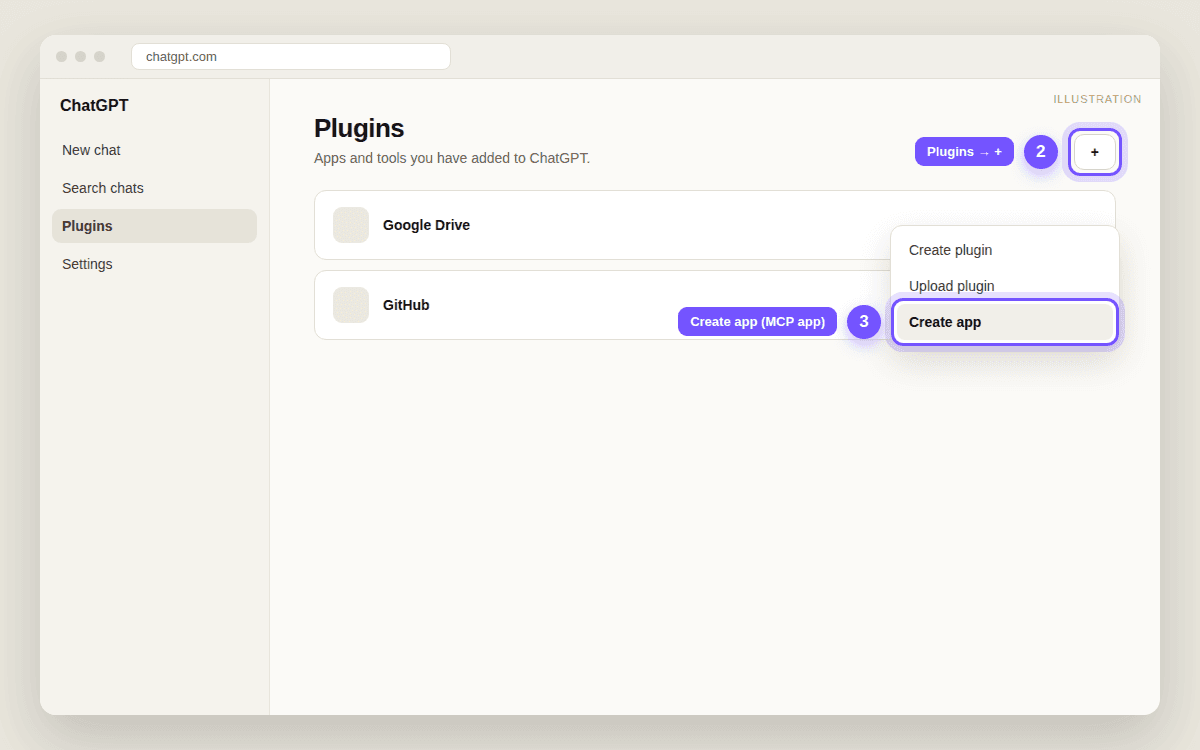
- Create an appOpen Plugins in the sidebar, click the + button and choose Create app (in some versions: Create MCP app).
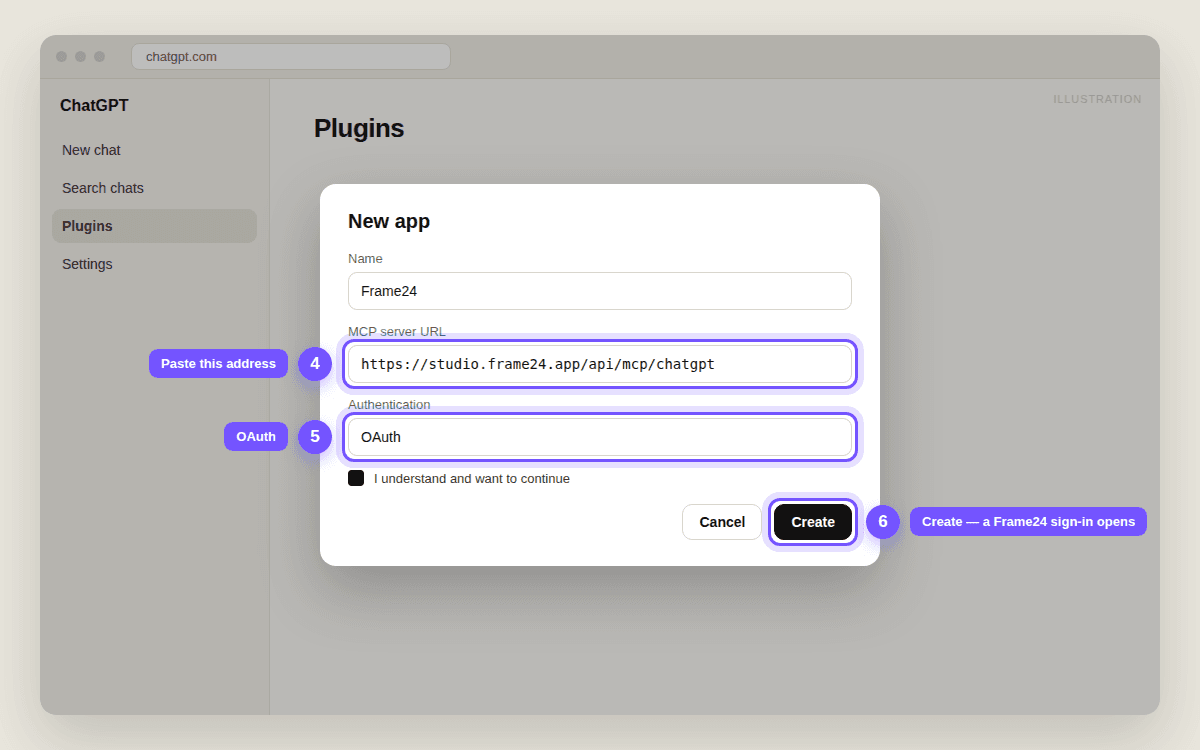
- Paste Frame24's addressName: Frame24. MCP server URL: https://studio.frame24.app/api/mcp/chatgpt. Authentication: OAuth. Tick "I understand and want to continue" and click Create.
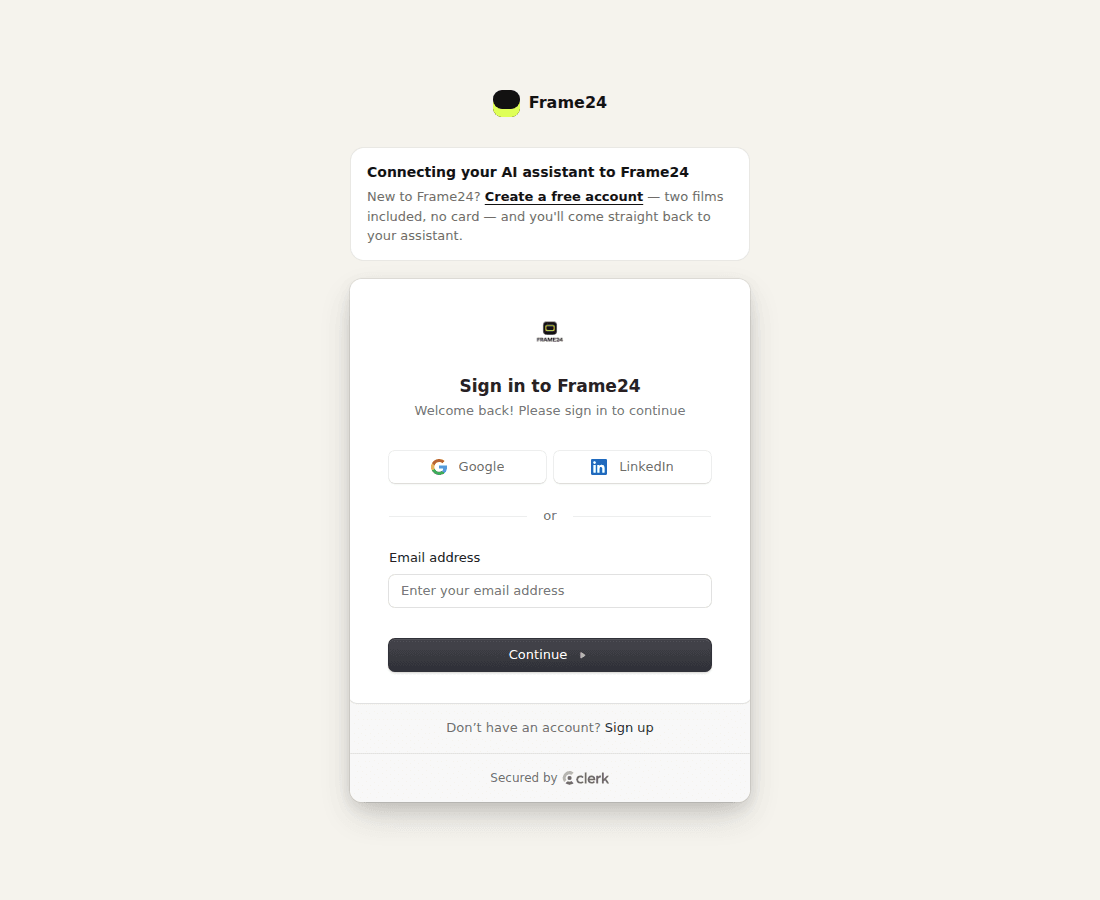
- Sign in to Frame24A Frame24 page opens: sign in with Google, LinkedIn or your email — or click Create an account if you are new.
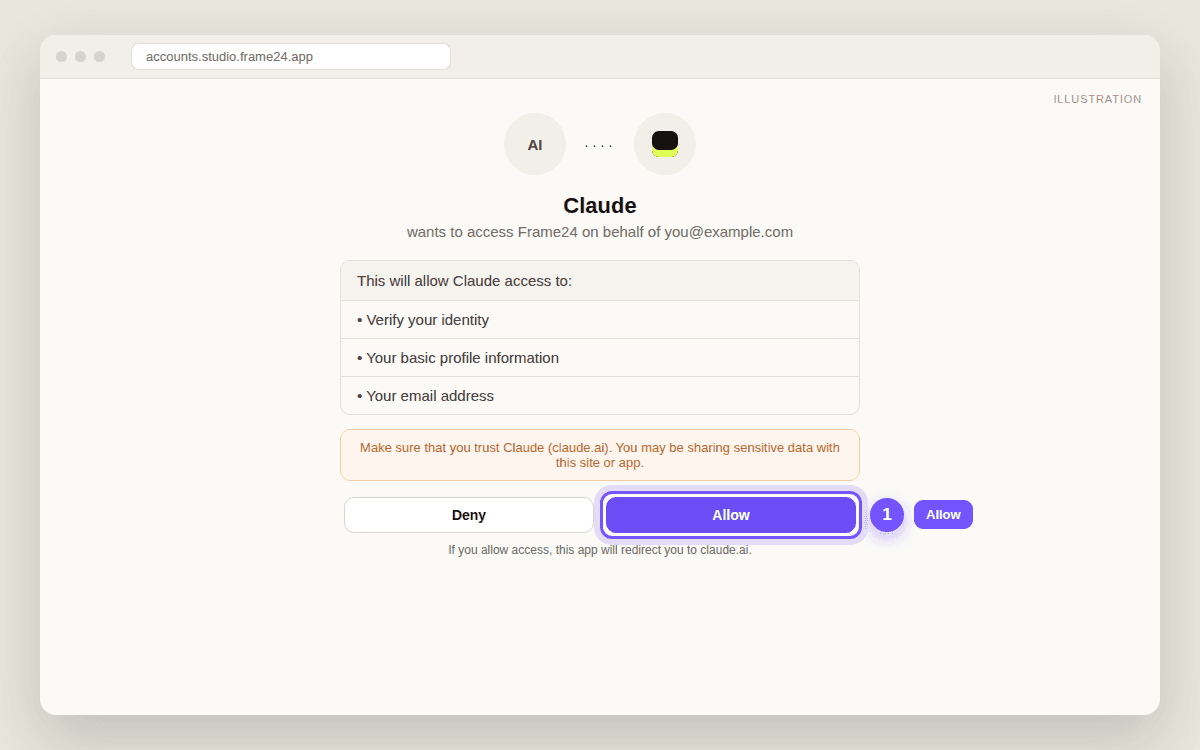
- Click AllowFrame24 asks whether ChatGPT may use your Frame24 account. Click Allow. You land back in ChatGPT with Frame24 connected.
- Pick Frame24 in a chat and askIn a new chat, click +, choose Developer mode and select Frame24. Then ask for your film.
1. Turn on Developer mode
2. Plugins → + → Create app
3. Paste Frame24's address and click Create
Name: Frame24. MCP server URL: https://studio.frame24.app/api/mcp/chatgpt — note the /chatgpt at the end; it is the version made for ChatGPT. Authentication: OAuth. Tick the box that says you understand, then Create.
4. Sign in to Frame24
A Frame24 page opens. If you already use Frame24, sign in the way you normally do. If you are new, click Create an account, then start the 3-day trial — three 30-second films, card required. You come straight back to ChatGPT afterwards.
5. Click Allow
6. Pick Frame24 in a chat, and ask
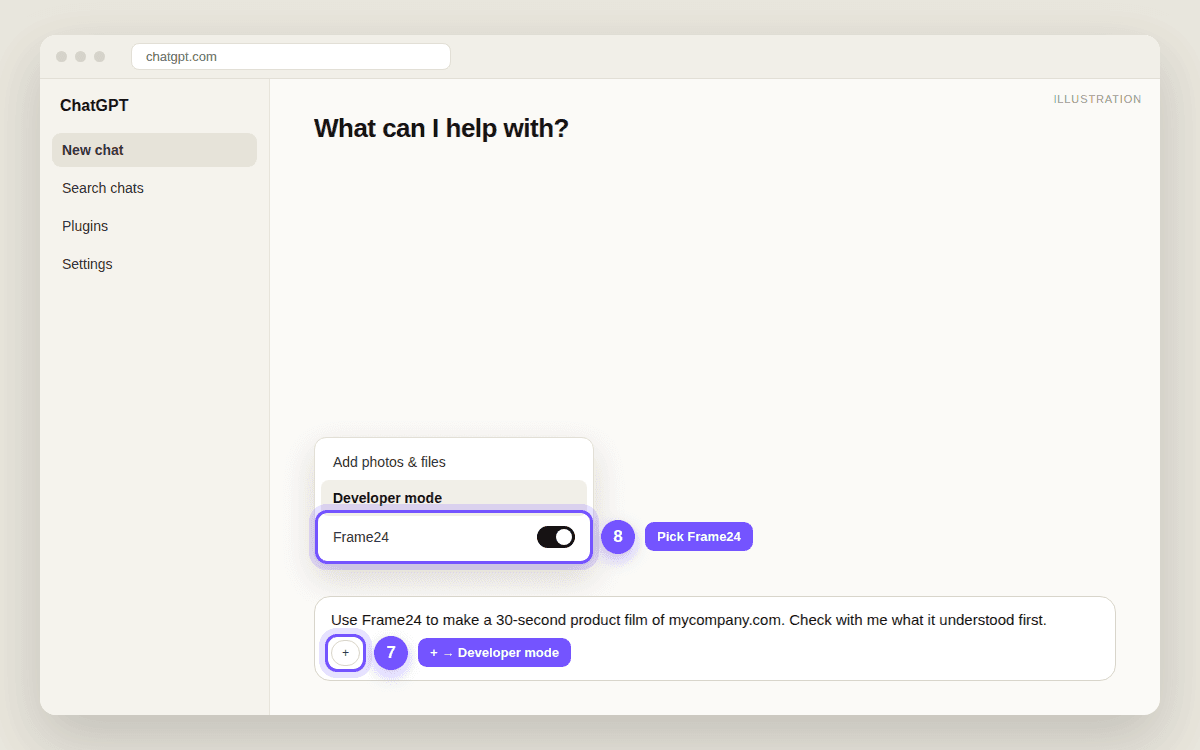
It helps to name Frame24 in your request the first time, for example:
- "Use Frame24 to make a 30-second product film of mycompany.com. Check with me what it understood first."
- "Use Frame24 to capture our sign-up flow and show me the screens."
- "Use Frame24 to watch the film and tell me what isn't working."
ChatGPT will ask you to confirm before Frame24 creates or changes anything — a project, a capture, a film. That is ChatGPT keeping you in control; click Confirm when the request is what you wanted.
If something does not work
| What you see | What it means | What to do |
|---|---|---|
| No Developer mode switch | Free plan, or your workspace admin has not allowed it | Upgrade to Plus or ask your ChatGPT admin |
| No Create app in the + menu | Developer mode is still off | Go back to step 1 and switch it on, then reload the page |
| The sign-in page asks for an email code | That is Frame24's normal sign-in | Enter the code from your email, or use Google or LinkedIn |
| ChatGPT says it has no Frame24 tools | Frame24 is not selected in this chat | + → Developer mode → select Frame24 |
| Anything else | — | Email support@frame24.app with a screenshot |
Questions people ask
Why does ChatGPT call it Developer mode? Do I need to be a developer?
No. Developer mode is simply the switch that lets you add apps that are not in ChatGPT's own directory yet. You paste one address and sign in — there is no code involved.
Can I use Frame24 on the free ChatGPT plan?
Not yet. Custom apps need ChatGPT Plus, Pro, Business, Enterprise or Education. On the free plan, use Frame24 in Claude or Gemini, or directly in the Frame24 studio.
Does it work in the ChatGPT app on my phone?
Not yet — ChatGPT runs custom apps on chatgpt.com in a browser only. Set it up and use it on a computer.
I cannot find Developer mode in ChatGPT's settings. Where is it?
ChatGPT moves it occasionally: look under Settings → Security and login, or Settings → Apps → Advanced settings. On a Business or Enterprise workspace, your admin may need to allow it first.
Frame24 added a new feature — do I need to set it up again?
No. Open Frame24 in ChatGPT's app settings and click Refresh to pick up new tools. Your connection and your films stay as they are.
Keep reading
Connect Frame24 to ChatGPT, Claude or Gemini
Two minutes, one web address, one sign-in — then ask your assistant for a product film the way you would ask a colleague.
Connect Frame24 to Claude
In any chat: + → Connectors → Add connector → Add custom connector, paste one address, sign in. About two minutes, on every Claude plan.
Connect Frame24 to Gemini
Settings → Connected Apps → Add a custom app, paste one address, sign in. About two minutes with a personal Google account in the US.