Claude guideConnect Frame24 to Claude
Add Frame24 to Claude as a custom connector in about two minutes — every step pictured — then ask Claude to make a product film of your website and real screens.
Adding Frame24 to Claude takes about two minutes. You tell Claude where Frame24 lives (one web address), sign in to Frame24 once, and from then on you can ask Claude to make product films for you — it researches your product, captures your real screens and checks the story with you before anything is made.
You need: a Claude account (any plan, including Free) and a web browser. You do not need a Frame24 account yet — you can create one during step 4.
Connect Frame24 to Claude
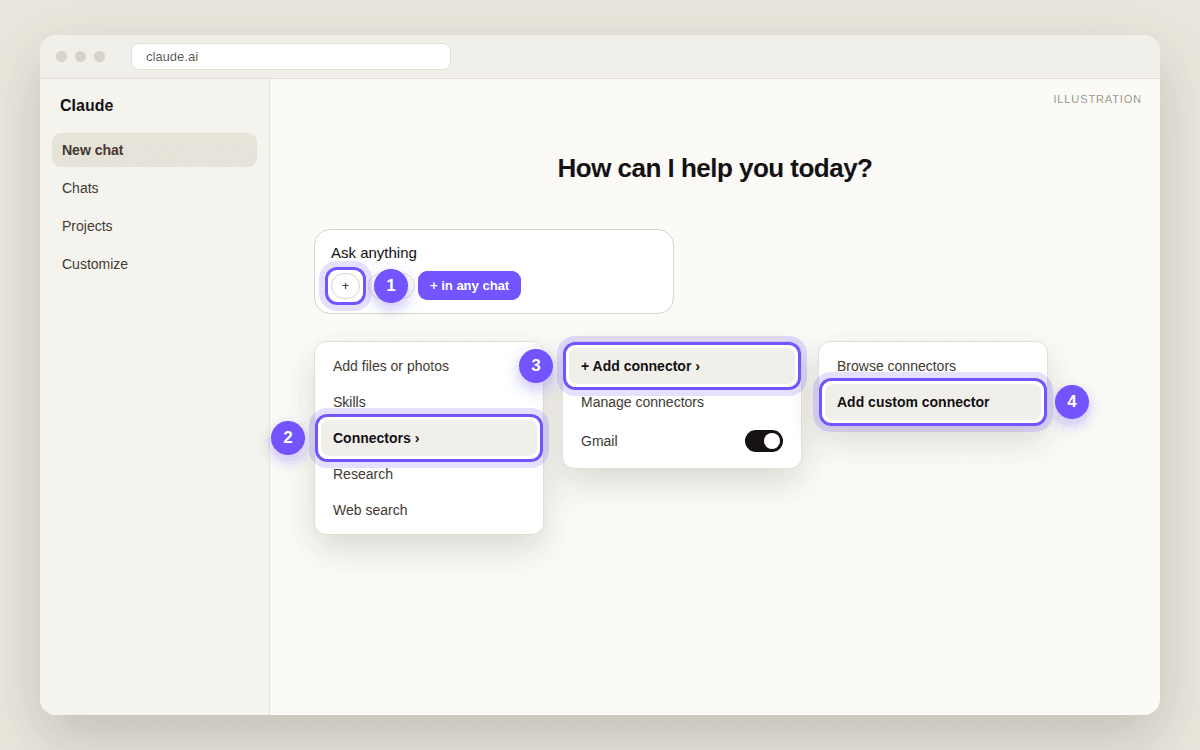
- Open the connector menuIn any chat on claude.ai (or the Claude desktop app), click + at the bottom left of the message box, then Connectors → Add connector → Add custom connector.
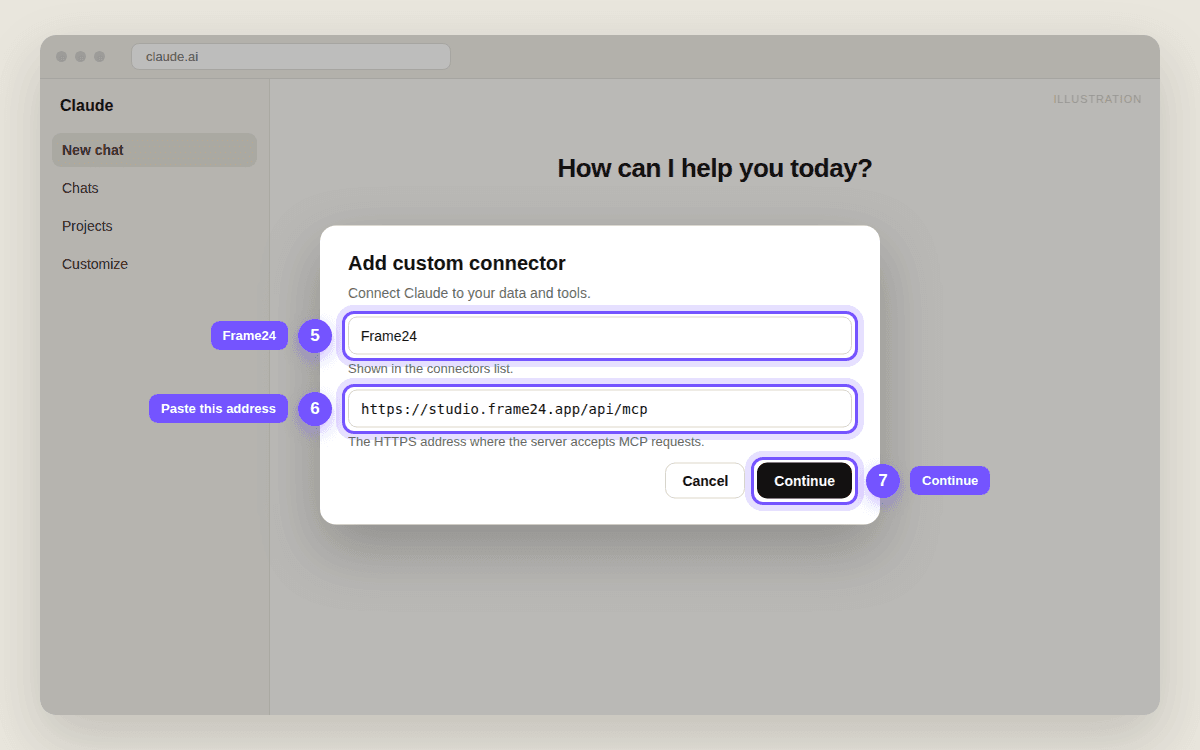
- Paste Frame24's addressIn the first box type Frame24. In the second, paste https://studio.frame24.app/api/mcp. Click Continue.
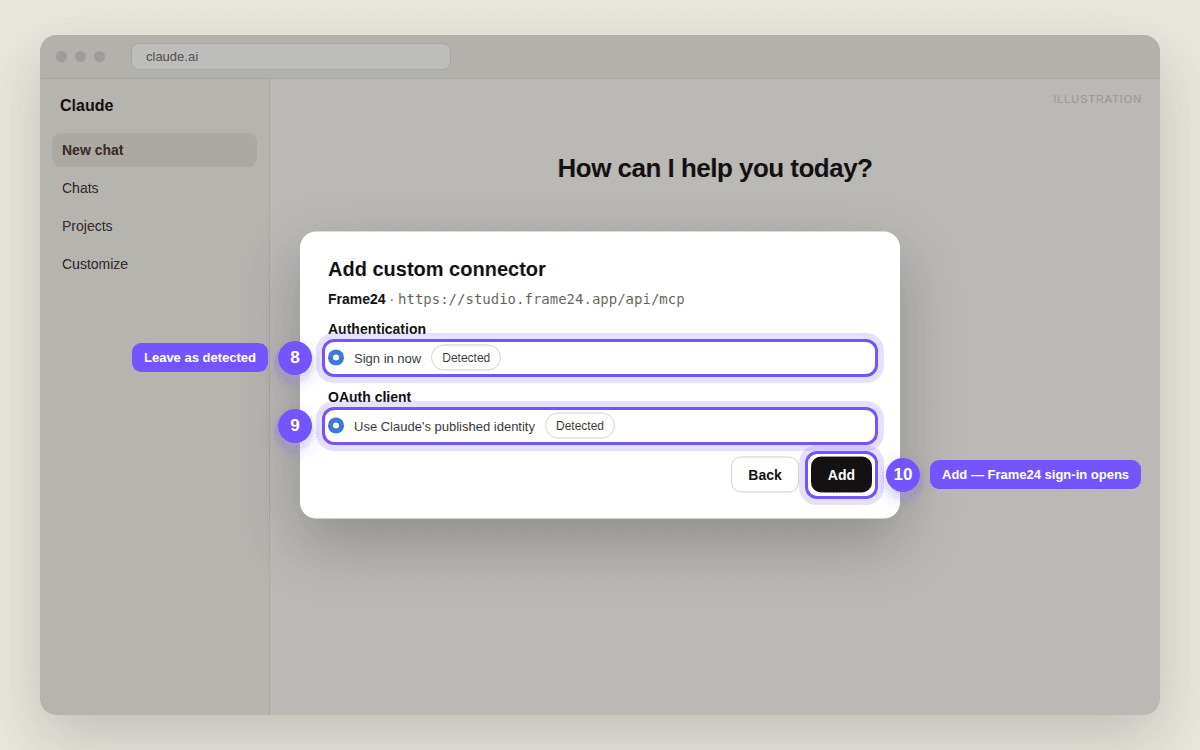
- Keep the detected settings and click AddClaude checks Frame24 and pre-selects Sign in now and Use Claude's published identity, both marked Detected. Leave them and click Add.
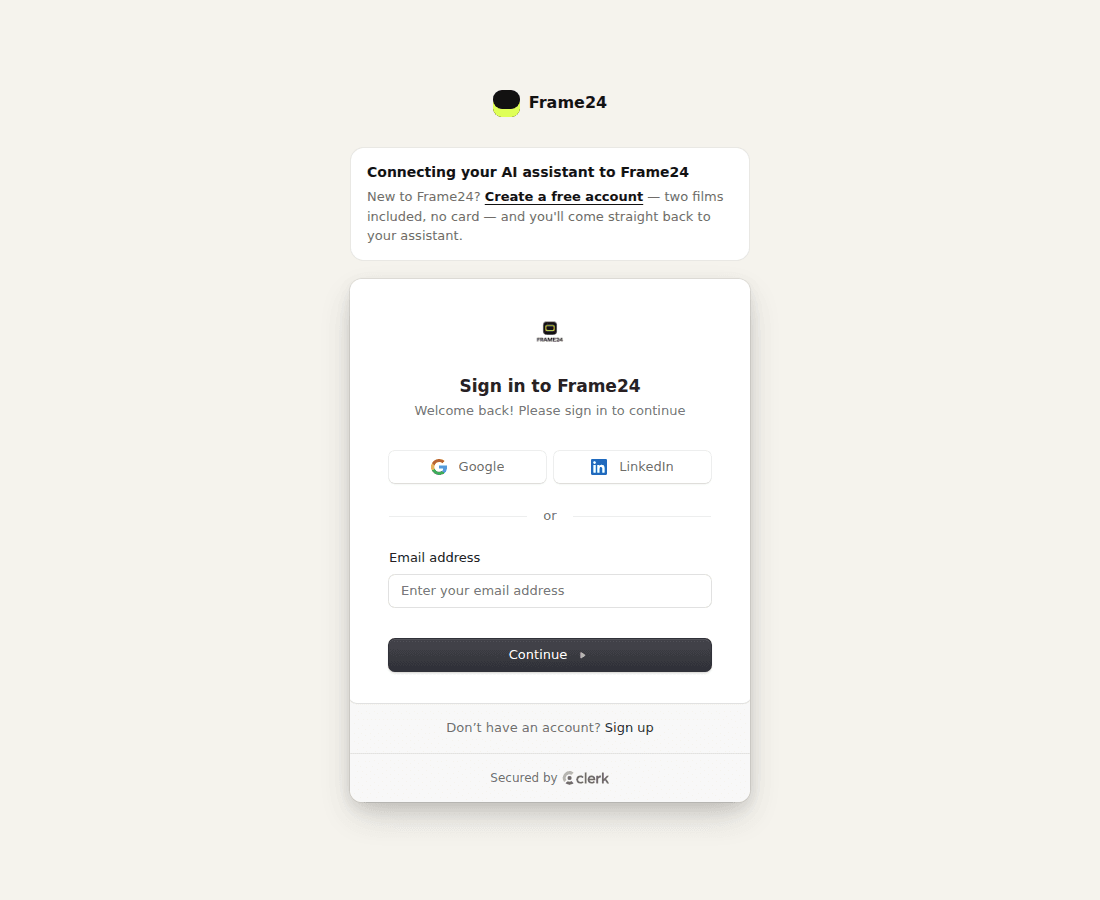
- Sign in to Frame24A Frame24 page opens: sign in with Google, LinkedIn or your email — or click Create an account if you are new.
- Click AllowFrame24 asks whether Claude may use your Frame24 account. Click Allow. You land back in Claude, with Frame24 connected.
- Turn it on in a chat and askClick + → Connectors and switch Frame24 on for the chat. Then ask for your film.
1. + → Connectors → Add connector → Add custom connector
2. Name it, paste the address, click Continue
First box: Frame24 — it is only the name you will see in your list. Second box: https://studio.frame24.app/api/mcp — copy it exactly, including https://. Then click Continue.
Claude shows a reminder to only use connectors from developers you trust. That is Claude's standard note for every connector it has not built itself.
3. Leave the detected settings, click Add
Claude checks Frame24 and fills in how to sign in by itself — both choices say Detected. You do not need to change anything or add headers; just click Add.
4. Sign in to Frame24
A Frame24 page opens. If you already use Frame24, sign in the way you normally do. If you are new, click Create an account, then start the 3-day trial — three 30-second films, card required. Either way, you come straight back to Claude.
5. Click Allow
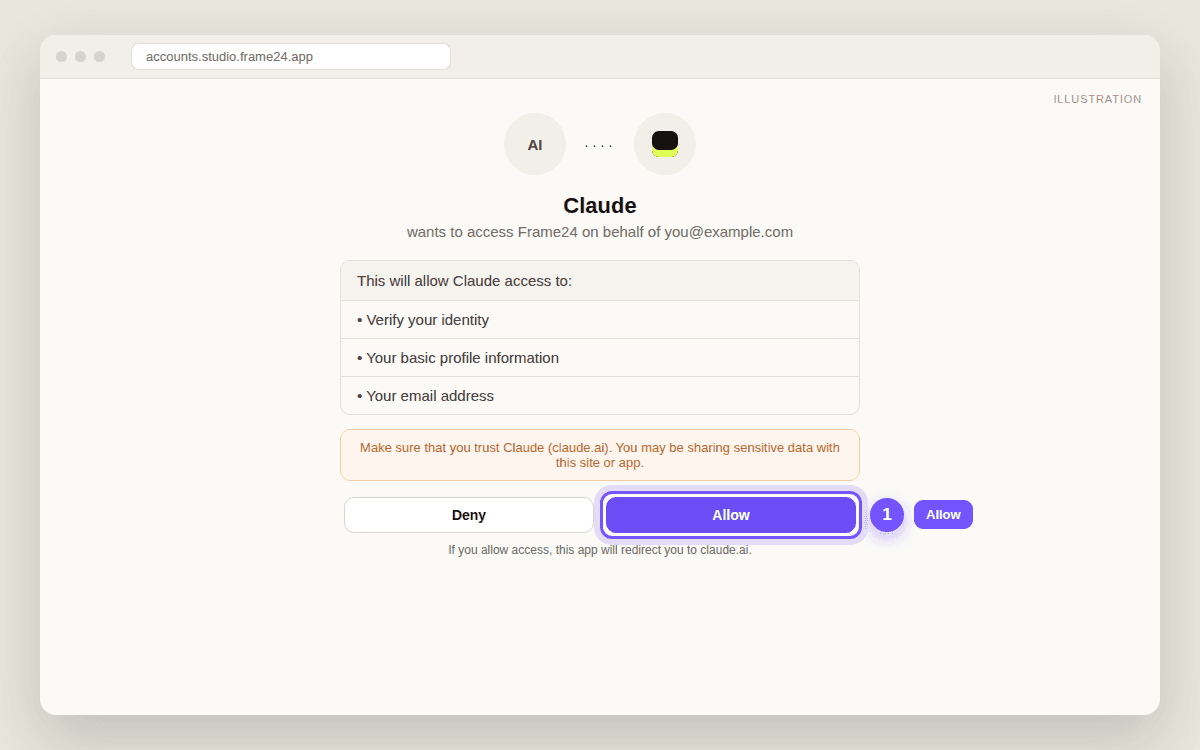
That is the connection done. Claude never sees your Frame24 password — Frame24 gives Claude a key it can use on your behalf, which you can take back at any time by disconnecting.
6. Turn Frame24 on in a chat, and ask
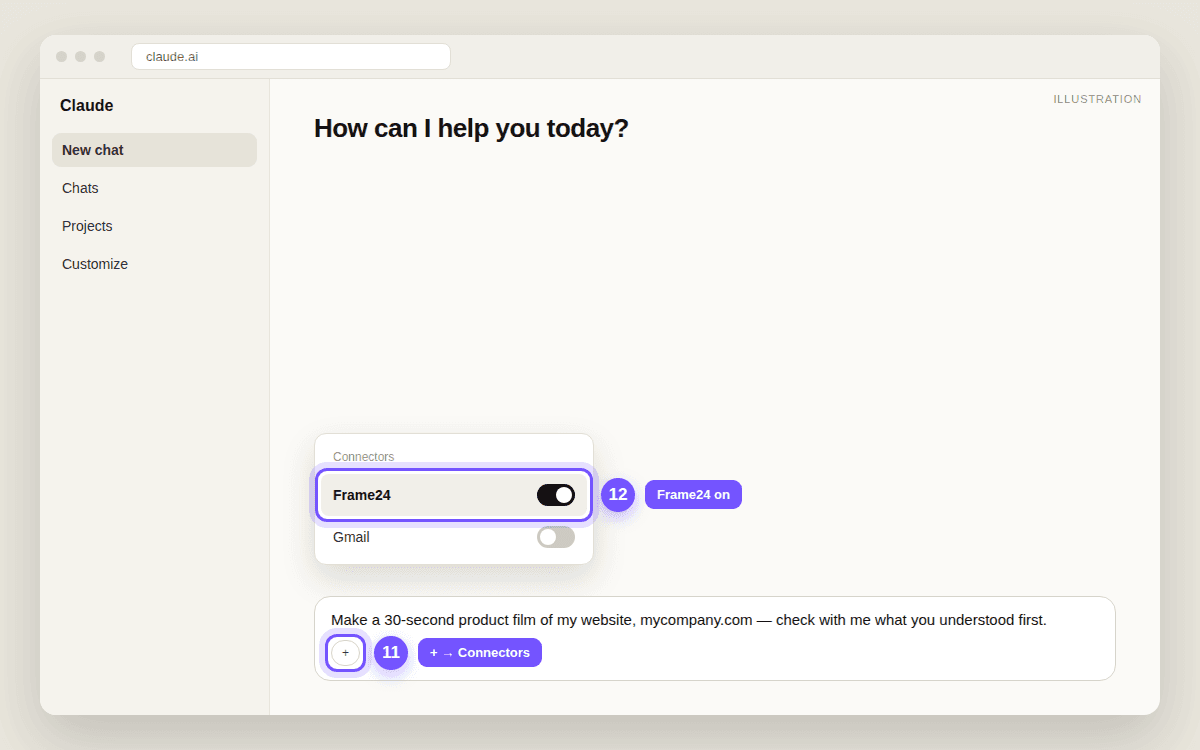
Some good first requests:
- "Make a 30-second product film of mycompany.com. Check with me what you understood first."
- "Capture our sign-up flow in Frame24's browser and show me the screens you got."
- "Watch the film you just made and tell me honestly what isn't working."
If something does not work
| What you see | What it means | What to do |
|---|---|---|
| No Add custom connector option | Your workspace is on a Team or Enterprise plan | Ask your Claude owner to add Frame24 under Organization settings → Connectors |
| You already have a custom connector on Free | The Free plan allows one | Remove the other one, or use a paid Claude plan |
| The sign-in page asks for an email code | That is Frame24's normal sign-in | Enter the code from your email, or use Google or LinkedIn |
| Claude says it cannot find Frame24 in a chat | Frame24 is not switched on for this chat | + → Connectors → switch Frame24 on |
| You closed the sign-in tab by accident | The connection did not finish | + → Connectors → Manage connectors, open Frame24 and click Connect |
| Anything else | — | Email support@frame24.app with a screenshot |
Questions people ask
How do I add a custom connector in Claude?
In any chat on claude.ai, click + at the bottom left, then Connectors → Add connector → Add custom connector. Give it a name and paste the connector's web address — for Frame24 that is https://studio.frame24.app/api/mcp — then click Continue, keep the detected settings, click Add and sign in when asked. You can also start from Customize → Connectors.
Does Frame24 work on the Claude Free plan?
Yes. The Free plan allows one custom connector, so you can add Frame24 as that one. Pro, Max, Team and Enterprise plans can add as many as they like.
I use Claude at work on a Team plan and cannot see Add custom connector. Why?
On Team and Enterprise, only an Owner or Primary Owner can add custom connectors, under Organization settings → Connectors. Ask them to add Frame24 once; you then click Connect and sign in with your own Frame24 account.
Do I have to turn Frame24 on in every chat?
Yes — Claude lets you choose which connectors each conversation may use. Click + at the bottom left of the message box, open Connectors and switch Frame24 on. It stays connected to your account; the switch only decides whether this chat can use it.
How do I remove Frame24 from Claude?
In a chat, click + → Connectors → Manage connectors (or go to Customize → Connectors), open Frame24 and choose Disconnect or Remove. Your Frame24 projects and films stay in your Frame24 account.
Keep reading
Connect Frame24 to ChatGPT, Claude or Gemini
Two minutes, one web address, one sign-in — then ask your assistant for a product film the way you would ask a colleague.
Connect Frame24 to ChatGPT
Turn on Developer mode, create a Frame24 app with one address, sign in. About three minutes on ChatGPT Plus, Pro, Business, Enterprise or Education.
Connect Frame24 to Gemini
Settings → Connected Apps → Add a custom app, paste one address, sign in. About two minutes with a personal Google account in the US.